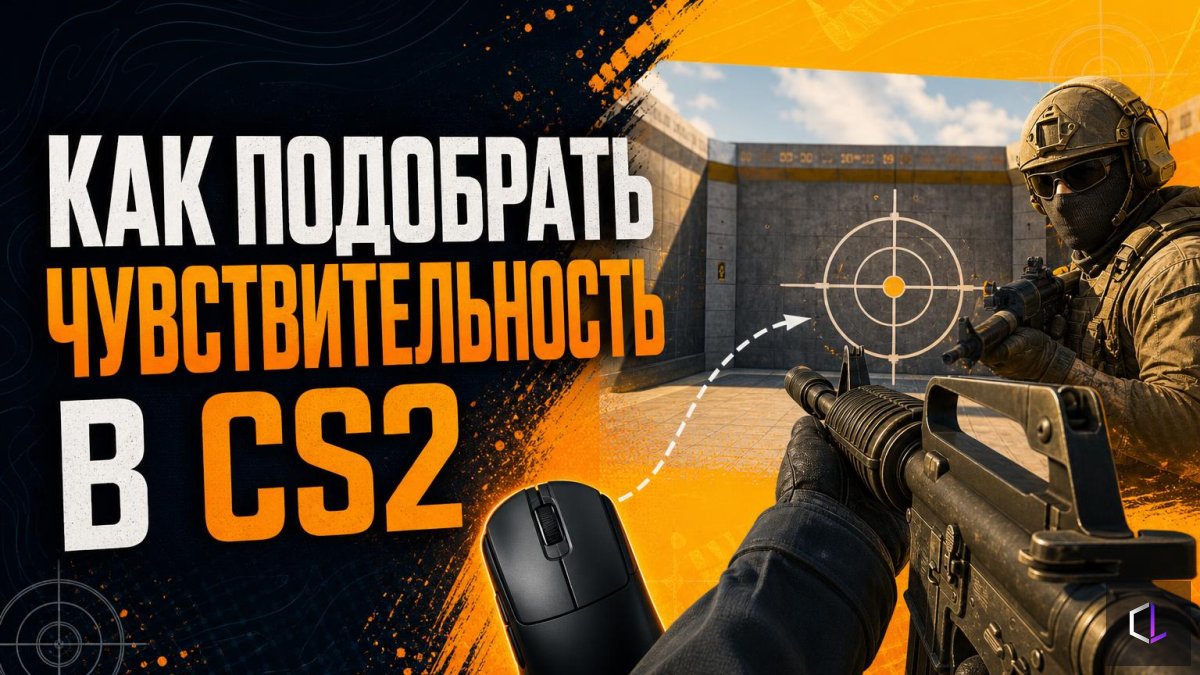
A map called Sensitivity Finder has appeared in the CS2 Workshop, promising to find the right sensitivity for a specific player. The tool is interesting in its own right, but something else is more interesting: it makes a convenient example for looking at how sensitivity is chosen in general, and why "like a pro player" works worse than it seems.
What sensitivity is made of
Sensitivity in CS2 is not a single number but a combination of two. DPI (the number of points the mouse sensor reads per inch of movement) is set in the mouse itself or its software. In-game sens is a multiplier applied on top. Multiply them together and you get eDPI, or effective sensitivity: this is what players compare with each other. If one player has 800 DPI and 1.0 sens, and another has 400 DPI and 2.0 sens, they have the same eDPI — 800 — and the mouse will behave identically.
The practical takeaway: comparing settings by in-game sens alone is meaningless until you know the DPI.
How the map works
The map's author suggests going through several steps. In the chat, you enter commands with your current values: !sens and !dpi. Then you need to turn left and right to determine a comfortable turning angle. Next comes a blind test: with your eyes closed, you turn 90° in each direction five times and shoot, to record where your crosshair ended up. After that come six stages with different sensitivities: shooting at targets and peeking against a bot. At the end, the map gives you a recommended sens, a margin of error in percent, an optimal range, and your eDPI.
The idea is clear: rely not on someone else's config but on the muscle memory of your own hand. The closed-eyes test is the most interesting part: it shows what distance your hand "counts" as a 90° turn, without any hints from the picture.
What the map can't measure
Here it's worth keeping a healthy skepticism. A practice map tests your aim in conditions with no pressure, no noise, and no unexpected angles. Bot peeks and target shooting are one kind of load, while a duel in a trade fight against a live opponent is something else entirely. A sens that feels comfortable on targets may in practice turn out to be too fast for holding long angles or too slow for spinning around to cover a rear position.
On top of that, the optimum depends on how you play. Someone who holds a lot of angles with the AWP and brings the crosshair in with small movements benefits from low sensitivity. Someone who actively enters sites and turns quickly often chooses slightly higher. There is no single "ideal" eDPI, and any tool gives you more of a range to experiment with than a final answer.
How to treat the result
The recommendation the map gives you is best treated as a hypothesis. The most effective approach is not to change the values every evening: give a sens a couple of weeks so your hand can get used to it, otherwise you will confuse adaptation with a bad setting. If after that you consistently undershoot the target on fast turns, the sens is a bit low; if you constantly overshoot and "shake" the crosshair at long range, it is a bit high. Change it in small steps, five to ten percent, not by half.
One more detail that people overlook: sens is affected by your mousepad, the surface, and your hand position. If you've moved from a small mousepad to a large one or changed your grip, your old setting may stop suiting you even though the numbers haven't changed. So it makes sense to repeat any measurements after changing equipment.
The Sensitivity Finder map is a convenient starting point and a good reason to finally find out your own eDPI and consciously compare it with typical values. But the deciding argument in any debate about sens is always the same: do you hit headshots at real distances, when the stakes in the round are real.