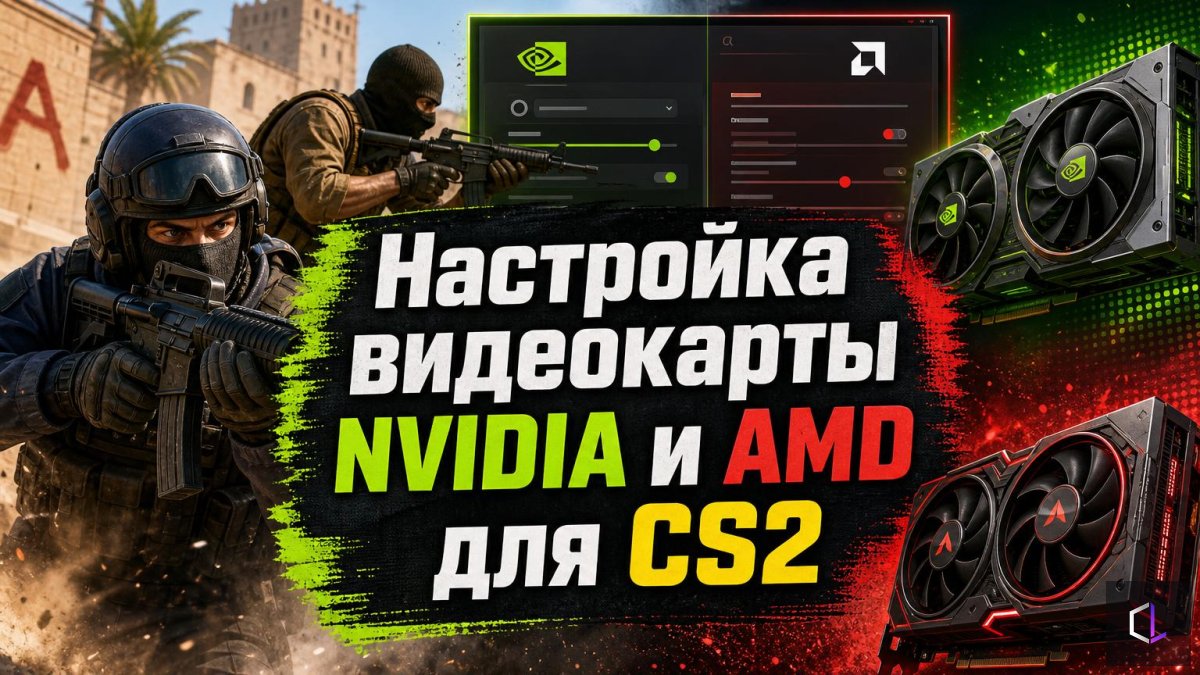
The graphics driver control panel is where many CS2 players change everything at once, following a list of two dozen options found online. Some of these options really do affect the game, some do nothing noticeable, and a few can work against you. Let's look at how to approach configuration sensibly.
Two goals that are easy to confuse
Driver settings usually pursue two different goals: reducing latency (the time from your mouse movement to the change on screen) and making the picture stable in terms of frame rate. These are not the same thing. You can have a high average FPS and still feel "sluggishness" from the frame queue, or you can hit drops at the most intense moment of a round. When you read someone else's list of settings, ask yourself which of the two goals each option serves.
Steps worth taking
1. Record your baseline. Before changing anything, run the same practice map and note your FPS and how it feels in identical scenes: an open area, smoke, a firefight. Without this, you won't know whether a change helped.
2. Disable vertical sync. It aligns frames to the monitor's refresh rate but adds latency. In the lists for NVIDIA and AMD this option is set to off — the logic here is clear: when playing for speed, the picture matters more than the absence of tearing.
3. Enable a latency-reduction mode. For NVIDIA this is Low Latency Mode (set to "Ultra" in the list), for AMD it is Radeon Anti-Lag. Both reduce the queue of frames that the processor prepares in advance for the graphics card. The effect depends on your configuration: if the bottleneck is the processor rather than the graphics card, the gain may be small.
4. Choose maximum performance in power management. For NVIDIA this is the "Prefer maximum performance" mode. The point is that the card doesn't lower its clocks in light scenes and doesn't "wake up" with a jolt when the load increases.
5. Remove image filters and "enhancers". In the AMD list, Radeon Chill, Boost, image sharpening, and super resolution are turned off; for NVIDIA, FXAA, gamma correction, and transparency antialiasing. These features either cap frames, alter the image, or spend resources on things that aren't needed in a competitive game.
6. Set texture filtering to performance. Moving the texture filtering quality parameter toward speed reduces the load, while its effect on visual readability in CS2 is minimal.
7. Compare the result with step 1. Repeat the same run. If FPS hasn't risen and the feel hasn't changed, then the bottleneck isn't in the driver but, for example, in the processor or in the game's own settings.
What not to do blindly
The post the list was taken from ends with the question "Smoother / PC burned out" — it's a joke, but there's a sound idea in it: blindly copying someone else's parameters is risky. These settings themselves won't burn out your system, but different graphics cards, monitors, and processors behave differently. Something from the list may be superfluous for your particular build. For example, disabling the frame rate cap is convenient for measurements, but with weak cooling the card will be running at its limit constantly.
A good principle is to change one or two parameters at a time and check against the baseline each time. If you changed twenty options at once and things got better, you'll never know which of them worked and which are just sitting idle.
The driver is only part of the picture
Graphics card settings work together with the game's own parameters. If CS2 is set to high shadow quality and complex effects, the driver won't rescue smoothness on its own. So a sensible order is this: in-game parameters first, then the driver, then verification. The reverse order — when everything has been "squeezed out" in the driver but heavy effects are set in the game — often gives the feeling that the configuration didn't help.
Finally, remember that a smooth picture is a tool, not a result. Stable frames help you see a target on time and shoot without micro-delays, but if you're losing rounds because of positioning and timing, no driver setting will fix that. Treat it like workspace hygiene: do it once, check it, and then get on with the game itself.