You go out for a utility execute, the smoke and molotov fly according to plan, and at the very moment of the explosion the picture stutters. One second of dropped FPS, and your crosshair is no longer where it should be. One of the settings that can soften this is called "Particle Detail," and it's often neglected until problems begin.
What Particles Are and How They Relate to FPS
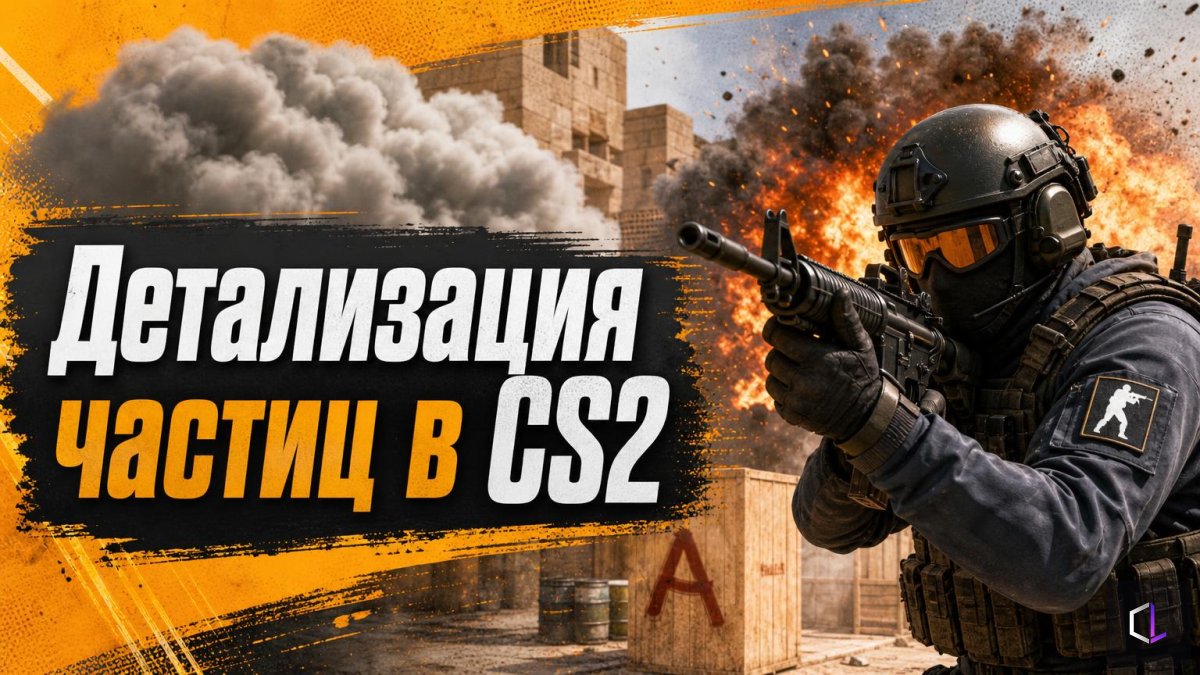
Particles are small effects that the game renders as a "cloud": puffs of smoke, molotov fire, flashes and fragments from explosions, dust from impacts. Each such particle requires calculations, and at the moment when several smokes, fire, and an explosion are on screen at once, the load on the system jumps sharply. That is exactly why the drop is not constant but occurs at specific points: in an empty corridor everything is smooth, but in the thick of a grenade execute the frames fall.
This setting controls how detailed the game's rendering of these effects is. The lower the detail, the less work for the graphics card and processor during the heavy seconds.
How to Test It on Your PC
There is no universal number like "it will add this much FPS": the result depends on your graphics card, processor, and other settings. So instead of trusting other people's numbers, it's more useful to measure it yourself.
1. Open the video settings and find the "Particle Detail" option. Write down the current value.
2. Turn on the FPS display — the built-in counter in the game or an overlay you already use.
3. Choose a test scene. The best option is a map with bots or your own practice server, where you can throw a combo of several smokes and molotovs in the same spot several times in a row.
4. Measure the minimum FPS at the moment of the explosion and smoke, not the average across the map. The minimum is what you feel as a stutter.
5. Lower the detail and repeat the same throw. Compare the minimums.
6. Keep what actually made a difference. If there was no drop even before the change, there's nothing to lower.
Where the Setting Has a Cost
Fewer particles doesn't always mean better. Smoke and fire in CS2 carry gameplay information: by how a smoke looks and how it disperses, a player reads the situation, for example noticing that someone has walked through the cloud. If after lowering the detail you notice that you distinguish the edges of the smoke or the moment when it thins out less well, that's a reason to put the value back or look for headroom in other settings.
It's also important that particles are only one of the causes of drops. If FPS falls for other reasons — overheating, background programs, a slow drive, insufficient video memory — the particle setting won't cure it. The recent rise in graphics card prices makes upgrading less affordable, so fine-tuning graphics for your own hardware remains the cheapest way to squeeze out stability.
A Habit That Pays Off
It's worth checking your settings not in the heat of a match, but in advance, in a calm environment: spend ten minutes on a test once and then play with confidence. A utility execute requires an exact moment of throwing and coordination with the team, and a smooth picture during those seconds is part of preparation, just like knowing the lineups and timings.
Try it at your next practice session: throw the same set of grenades at two values of detail and look at the minimum FPS. Often it is precisely this short experiment that shows where your PC's bottleneck really is.