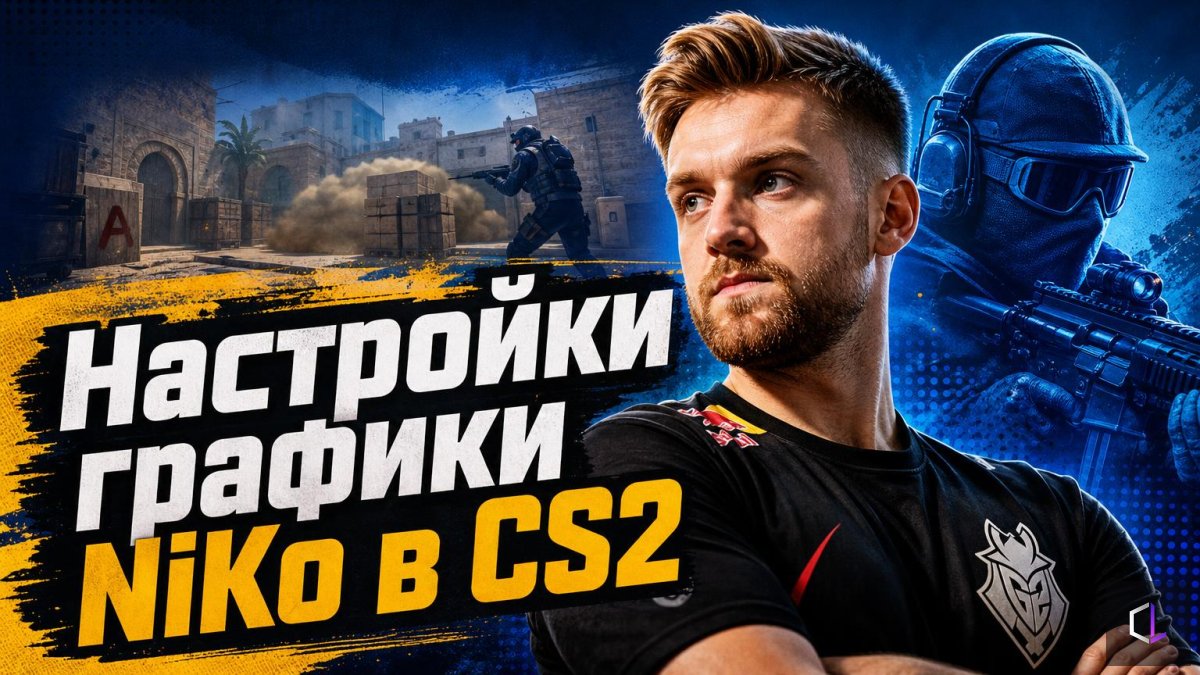
When NiKo opened the graphics menu on stream and showed which features he had on and which off, the chat turned into screenshots within minutes. The flood of copying is understandable: a player of Kovac's level is one of the most recognizable on the scene, and it seems that along with his settings you can adopt a bit of his confidence. But a professional's settings are not a recipe — they are a set of decisions tailored to specific hardware, a specific monitor, and specific habits. It's useful to understand the logic behind those decisions first, and only then decide what to take for yourself.
Graphics in CS2 Are Not About Beauty, but About Information
For esports players, the question about every setting is the same: does it help me see the opponent sooner, or does it get in the way? Everything else is secondary. That's why professional configurations look "ugly": low shadow values, minimal effects, no blur.
The settings you should look at first:
- Shadow quality. Shadows put more load on the graphics card than many other options. A low level reduces the load, but some information about silhouettes in dark areas is lost. This is a trade-off, not an obvious choice.
- Anti-aliasing (MSAA). Removes the "jaggies" on object edges, but costs noticeable resources. The higher your monitor's resolution, the less you need it.
- Motion blur. Makes it harder to make out a target while turning the camera. The vast majority of players turn it off.
- Texture and model detail. Affects how clearly player outlines read at long range. Be careful about cutting back here.
Why You Shouldn't Copy Someone Else's Settings Wholesale
NiKo's configuration is built for his computer. If your graphics card is weaker, a value that gives him a stable several hundred frames may drop to unpleasant stutters on your machine. The monitor is a separate matter: at 240 Hz and at 60 Hz, the same settings have different effects on how responsive the game feels.
There's also a less obvious factor: resolution and aspect ratio. Players who prefer a stretched or reduced screen do it for larger enemy models or for a higher frame rate. If you copy a setting without understanding it, you may end up with a picture that's uncomfortable for you, and then you'll lose accuracy instead of gaining it.
The Order in Which to Tune Your Settings
A sensible sequence looks like this:
1. First, measure your starting point: the built-in performance benchmark, or a map with bots and the frame counter turned on. Without a number, any "it got better" is self-suggestion.
2. Set everything to medium and find where the drops occur. If frames fall only in smokes and large firefights, the problem is effects and shadows, not textures.
3. Lower one setting at a time, repeating the measurement each time. Several changes at once hide what actually worked.
4. Check readability separately: stand in a familiar position and see whether silhouettes are distinguishable where you usually expect an enemy.
5. Only after that, compare against other people's configurations — as a hint, not as a standard.
Stability Matters More Than the Maximum
A common mistake is chasing a high peak frame rate. For accurate shooting, a steady frame rate without dips matters more. A player with 250 frames in an empty corridor and 90 in a fight loses to one with a stable 180: the mouse responds predictably, and muscle memory isn't thrown off. So look not at the average, but at the minimum values in demanding scenes.
Don't forget about the hardware outside the game either: overheating, background programs, the power mode. Sometimes a few dozen frames come back without a single change in the graphics menu — it's enough to close what you don't need and check that the graphics card is running at full power.
The settings of the best players are interesting to study as an answer to the question "what are they sacrificing, and for what?" If you understand why NiKo chooses one thing and gives up another, you can make your own decision — and one confirmed by measurements on your own computer is always more reliable than a copied one.