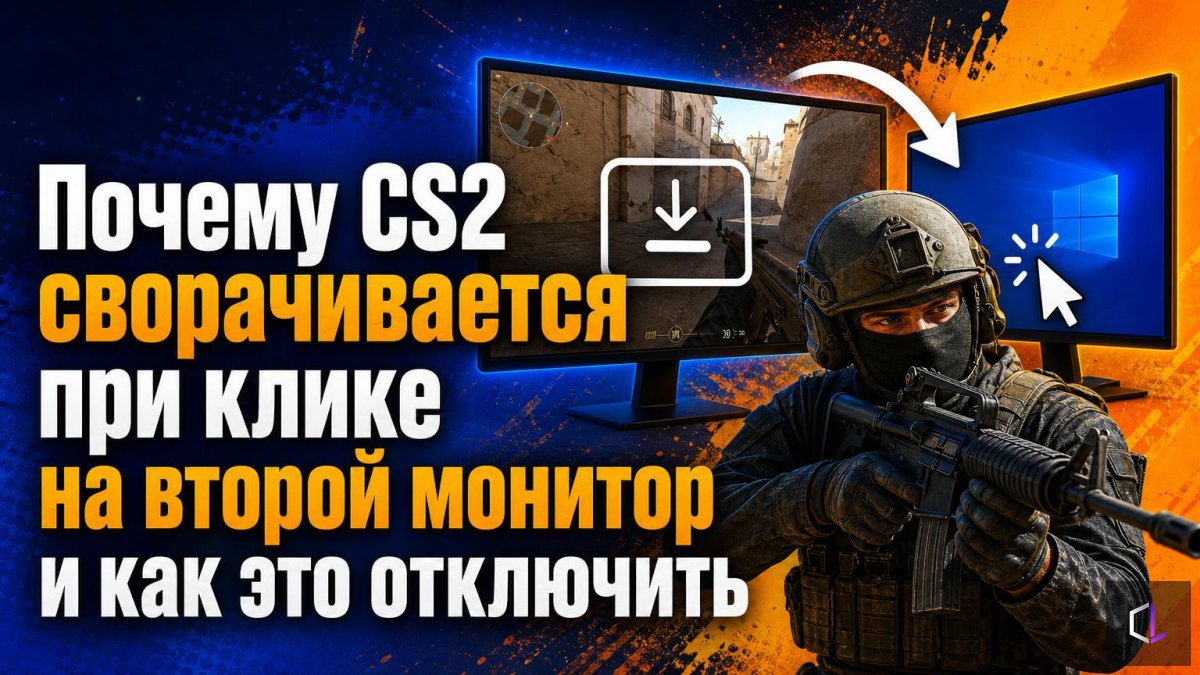
Two monitors have long become the norm: Discord, a stream, team chat or a timer are open on the second one. But for some players, CS2 minimizes to the taskbar every time they click on the second screen. In a game where you want to quickly check the setup on your second monitor or switch a track, this is annoying, and in a competitive match it can cost you a round.
Why the game minimizes
The cause is most often the fullscreen mode. When CS2 runs in "true" fullscreen mode, it takes over the screen. This is especially noticeable with a non-standard resolution: 4:3, 16:10 and similar ones that differ from the monitor's native resolution. The game changes the display's operating mode, and when focus moves to another window, the system considers the CS2 window inactive and minimizes it.
In the game's configuration, a separate setting is responsible for this: it makes the client minimize when it loses focus. It can be turned off manually.
How to disable minimizing
You need to change one setting in the video settings file.
1. Open the CS2 configuration folder. It is located inside the userdata directory in the Steam folder; inside you will find a folder with a numeric name, and each account has its own.
2. Find the cs2_video file and open it with any text editor, for example Notepad.
3. Find the line with the `setting.fullscreen_min_on_focus_loss` parameter. A value of "1" means the game minimizes when it loses focus. Change it to "0" and save the file.
4. Open the properties of the cs2_video file, check the "Read-only" box and click "Apply".
The last step is important. Without it, the game may overwrite the file the next time it launches or when settings change, and restore the value "1". The "read-only" attribute prevents the client from doing this, and your edit stays in place.
What to keep in mind after the edit
There are a couple of side effects it's better to know about in advance.
First, because of the "read-only" attribute, the game will not be able to save changes to the video settings: if you later want to change the resolution or window mode through the menu, they won't be remembered. To do that, uncheck the box, make the changes, and then enable it again.
Second, it's worth making a copy of the file before editing. If something goes wrong, you can restore the original settings by simply copying it back.
Third, the edit does not turn off fullscreen mode itself; it only removes the minimizing. If you play on a stretched resolution (for example, 4:3 for larger models), it will stay as it was.
Which window mode to choose
If the minimizing doesn't go away or you don't want to edit files, there is a workaround: run the game in windowed fullscreen mode, that is, borderless. Switching between windows in it is instant, and the second monitor doesn't get in the way. The price of this mode is that you can't use a stretched resolution, as in classic fullscreen. For those who play at the monitor's native resolution, the difference is minimal.
The choice depends on your needs. If you play on stretched 4:3 and want to keep it, editing the setting remains the only way to combine this with a second screen. If you don't need stretching, it's easier to choose borderless mode and not touch system files.
When the problem may lie elsewhere
If the game still minimizes after the edit, it's worth checking related causes: overlays from third-party programs, fullscreen optimization settings in the executable file's properties, and the system's own settings. But in most cases it is the focus-loss setting that makes the game minimize when you click on the neighboring screen.
A minor technical inconvenience like this seems trivial until it happens at the wrong moment: during a warm-up before a match or in a pause, when you need to quickly switch to team chat. Five minutes spent editing the config pays off with trouble-free gaming for many months ahead.