Valve has released a Counter-Strike 2 update with a large block of crosshair changes. Some players have already complained that the game won't launch after the patch — if you've run into this, wait for the next fix and don't rush to reinstall the client. But the crosshair changes themselves deserve a calm look: they affect both ordinary strafe aim and grenade lineups. Below is what exactly has changed and what you should do first.
Step 1. Check that you actually see the spread
Valve has fixed the visualization of weapon inaccuracy and spread. Put simply: the dynamic-style crosshair expands to show where the bullet may go when firing on the move or in a long burst. If the discrepancy between the picture and the real spread used to seem normal to you, it's worth rechecking how it feels after the patch.
Go to an empty map and shoot at different distances: standing, crouching, moving. The goal isn't kills, but re-linking the visual image to what the weapon actually does. The crosshair is a feedback tool, and if it has become more honest, you should take advantage of that.
Step 2. Try Static Quadrant, but don't change everything at once
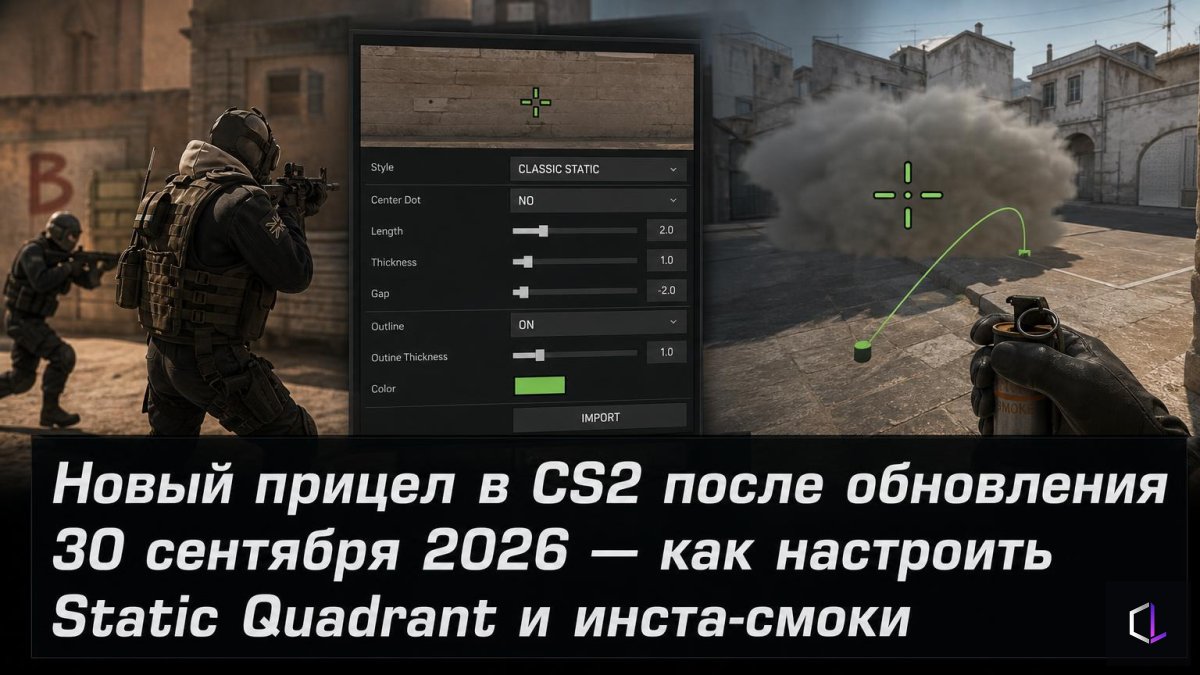
A new "Static Quadrant" style has been added — a static quadrant: four elements that don't spread apart when shooting and moving. Static crosshairs are favored by those for whom the dynamic "breathing" gets in the way of focusing on the opponent's head.
The practical order is as follows:
1. Save your current crosshair code in your notes — in case you need to roll back.
2. Enable Static Quadrant for two or three days only in practice mode and in deathmatch.
3. Don't change sensitivity and crosshair size at the same time: otherwise you won't understand what exactly helped or hindered.
4. Only after that, decide whether to carry the style over to ranked matches.
The new style is not a guarantee of improvement. It's one more option, and it needs to be tested as rigorously as any other settings change.
Step 3. Adjust the outline and minor parameters
You can now change the color of the crosshair outline. It's a small thing, but it solves an old problem: on light textures and in bright areas of the map, the outline helps you not lose the center of the screen. Choose a color that contrasts with the most common backgrounds on your maps, and test it at all the positions where you usually hold an angle.
A few more changes for those who like fine-tuning the classic dynamic style:
- negative gap values are now allowed — the center of the crosshair can be "collapsed" more tightly than before;
- the opacity (alpha) adjustment step is now 0.01, meaning you can regulate it much more precisely.
Negative gap is a good example of where it's easy to overdo it. A crosshair that's too tight starts to cover the target at medium distances. Shift the value in small steps and look at the enemy model in deathmatch each time.
Step 4. Update the import code and re-save it
The crosshair import code format has changed because it now includes all the new parameters, including the size and color of the dot in sniper rifle crosshairs. Hence the practical conclusion: codes you shared earlier can still be used, but they won't transfer the full set of settings. If you practice with teammates or move your config between computers, regenerate the code and store it in a safe place.
Separately, check your sniper crosshair: the dot parameters now live in the same code, and if you play AWP, it makes sense to configure them separately from your main weapon.
Step 5. Recheck your insta-smoke lineups
The most practical change for team play: grenade crosshairs now work during freeze time for insta-smokes — just hold down any grenade throw button. An insta-smoke is a smoke thrown right at the start of the round, while the freeze before the start is still in effect, to block the needed passage before the opponent has time to see anything.
What you should do:
1. Go through your standard insta-smokes on every map and make sure the grenade crosshair displays correctly during freeze time.
2. Revisit your memorized reference points: previously many relied on spots on a wall, and now you have an additional visual cue.
3. Don't abandon reference points entirely. The crosshair helps, but in a real round, 15 seconds before contact with the opponent, habit and memory are more reliable than any interface.
A good lineup stays good if you can execute it on autopilot. The new grenade crosshair is a safety net, not a replacement for practice.
If you play Rush maps
The update also includes changes to the Rush mode: object display on the maps has been fixed, and the official notes mention clipping fixes — that is, places where a player or grenade could pass through geometry. If you notice oddities with hits or throws on these maps, check the same position again: the behavior may have changed.
The crosshair is the only interface element you look at every second of a match, and after the update you have more ways to tailor it to yourself than ever before. Spend one evening on it, not five minutes before a game: a little care with your settings will later save dozens of rounds that would otherwise be played with constant mild discomfort.