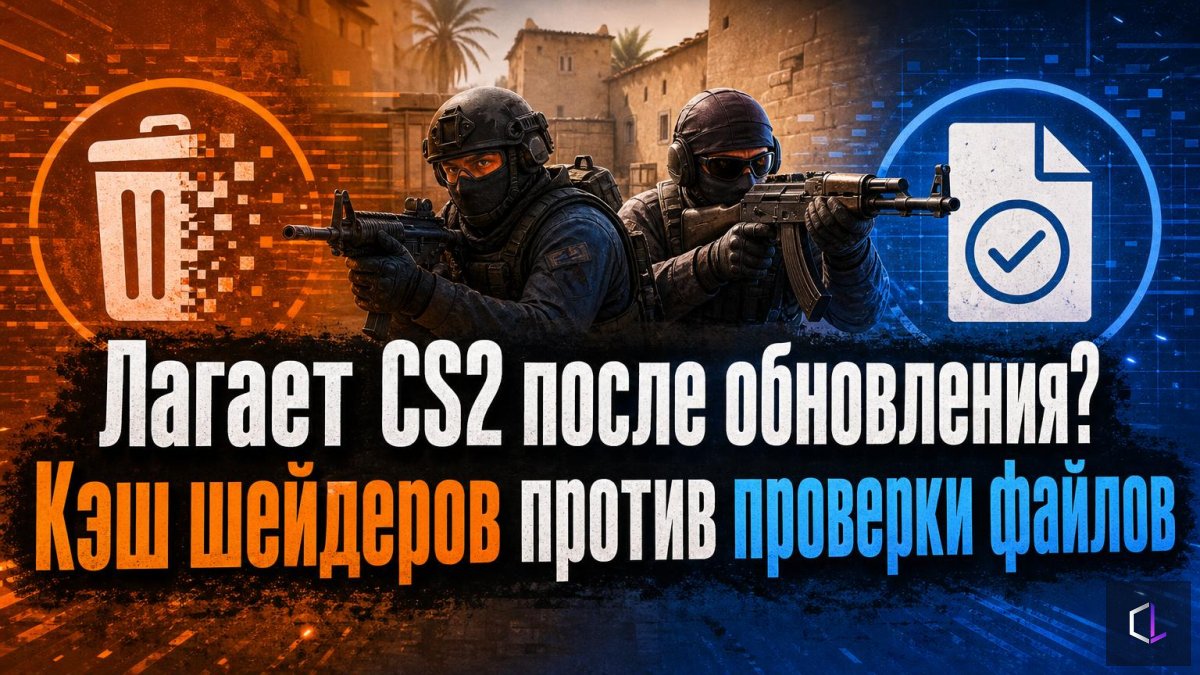
After another CS2 update, some players experience stutters and frame drops even though their hardware and settings haven't changed. The data miner Thour suggested two fixes: clearing the shader cache and verifying the integrity of the game files. They are often mentioned together, but they fix different things, and the order of actions matters here.
Two fixes, two different problems
Shaders are small programs the graphics card uses to render light, shadows, smoke, and materials. The driver compiles them once and stores them in a cache so it doesn't have to rebuild them on every launch. After a game update, some shaders change. If outdated or corrupted entries remain in the cache, the game may stutter when new effects appear on screen. Clearing the cache forces the driver to rebuild everything from scratch.
Game files are a different side of the issue. If something was written incorrectly during the update, clearing the cache won't fix that kind of problem. Integrity verification compares the files on disk against Steam's reference and re-downloads the damaged ones.
Clearing the shader cache
For NVIDIA graphics cards:
1. Press Win + R, type `%localappdata%`, and confirm with Enter.
2. Find the NVIDIA folder and delete two subfolders inside it: DXCache and GLCache.
3. Paste `steam://open/console` into your browser's address bar to open the Steam console.
4. Enter the command `shader_build 730` (730 is the CS2 ID in Steam).
5. Launch the game and simply stand in it for three to four minutes: the shaders will be rebuilt during that time.
For AMD graphics cards the path is shorter and runs entirely inside the driver: right-click the desktop, AMD Radeon Software, the Gaming tab, the Graphics section. Scroll down, find the Reset Shader Cache option, and click it.
Verifying file integrity
1. Find CS2 in your Steam library and right-click the game.
2. Open "Properties".
3. Go to the "Installed Files" section.
4. Click "Verify integrity of game files" and wait for it to finish.
The procedure is safe: Steam doesn't touch your settings and configs, it only replaces what doesn't match the reference. The time depends on your disk speed and how many files need to be re-downloaded.
What they have in common and how they differ
Both methods are free, take a few minutes, and don't require reinstalling the game. Both should be done with the game closed, and preferably not right before a match. The difference lies in what exactly they fix:
- the shader cache is responsible for how the graphics card draws the picture, and helps with micro-freezes on effects, smoke, and new surfaces;
- file verification is responsible for the game client itself, and helps if something is wrong with the installation after an update;
- clearing the cache depends on the graphics card manufacturer, while file verification is the same for everyone.
The logical order is to start with the cache, because it breaks more often and is fixed faster. If the stutters remain, move on to file verification. Change one thing at a time and compare results on the same stretch: for example, run through a single map with bots and watch the frame counter before and after. Otherwise it's unclear what exactly helped, and that will come in handy at the next update.
In the first minutes after clearing the cache, the game may behave worse than usual: the shaders are being rebuilt. That's why those three to four minutes of standing in the game are part of the procedure, not a pointless ritual. You should judge the result only after that, on the second or third launch.